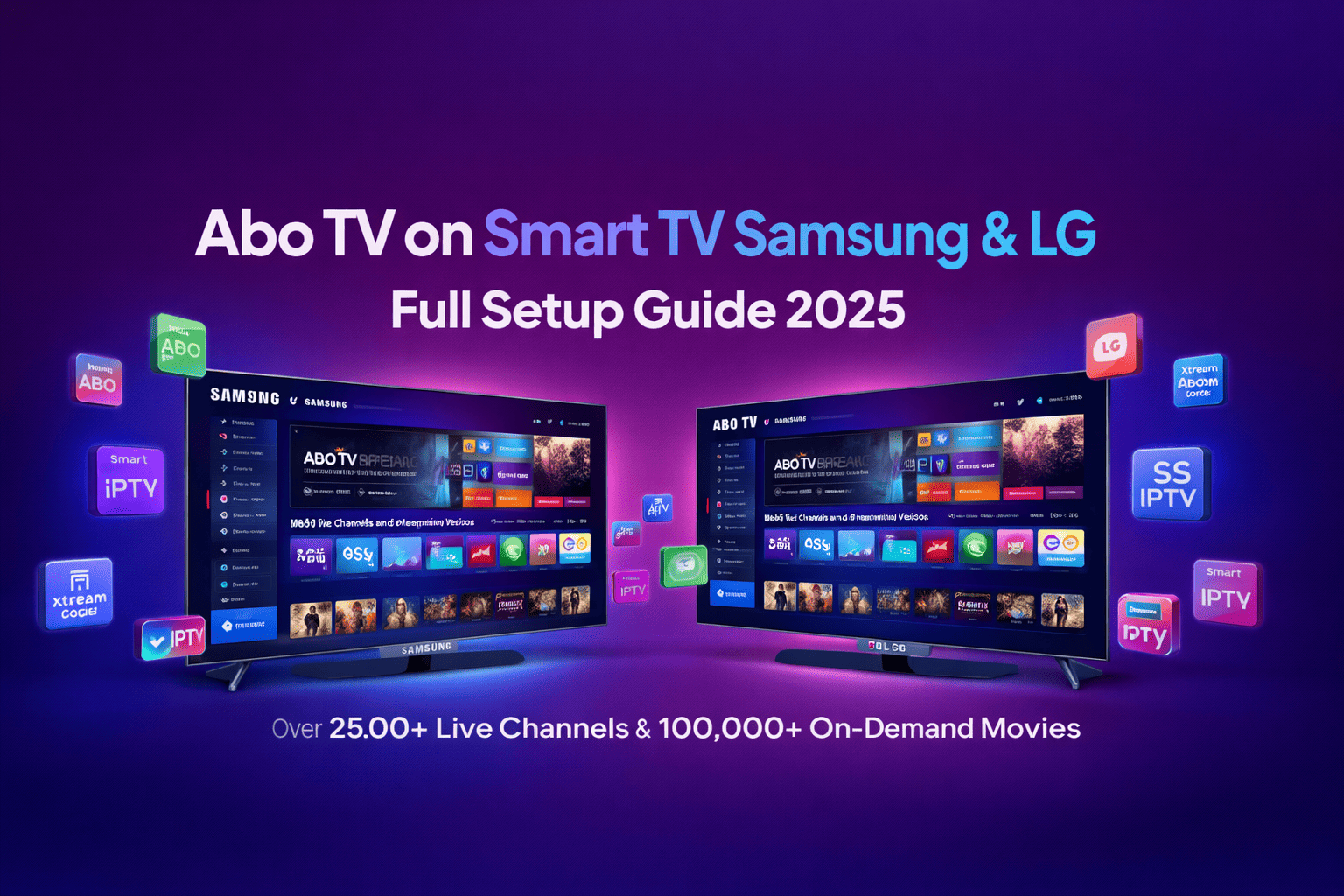
Samsung and LG Smart TVs are among the most popular televisions in the world — and the good news is that Abo TV IPTV is fully compatible with both brands. Whether you own a Samsung QLED, The Frame, or a Neo QLED, or an LG OLED, NanoCell, or QNED, this guide will walk you through everything you need to know to start streaming 25,000+ live channels and 100,000+ on-demand movies directly on your TV screen.
Why Use Abo TV on Your Smart TV?
Watching IPTV directly on a large Smart TV screen gives you the best streaming experience possible. No need for extra devices like a Firestick or Android box — your Smart TV is powerful enough to run IPTV apps natively. With Abo TV, you get:
- ✔ 4K Ultra HD and Full HD streams on your large screen
- ✔ Buffer-free viewing with Abo TV's anti-freeze technology
- ✔ Electronic Program Guide (EPG) for easy channel navigation
- ✔ 25,000+ live channels including sports, news, kids, and entertainment
- ✔ 100,000+ movies and series on demand
- ✔ No contracts — subscribe for 1, 3, 6 or 12 months
Compatible Apps for Samsung & LG Smart TV
Depending on your TV brand and model, here are the recommended apps to use with your Abo TV subscription:
How to Set Up Abo TV on Samsung Smart TV
Samsung Smart TVs run Tizen OS. The simplest way to install an IPTV app is directly from the Samsung Smart Hub App Store.
Method 1 — Smart IPTV App (Recommended)
-
1
Open Samsung Smart Hub
Press the Home button on your remote and navigate to Apps in the Smart Hub menu.
-
2
Search for "Smart IPTV"
Use the search function in the App Store and type Smart IPTV. Download and install it (the app is free to install).
-
3
Note your TV's MAC Address
When you launch Smart IPTV for the first time, it will display your TV's MAC address. Write it down — you'll need it to link your Abo TV subscription.
-
4
Enter your M3U URL
Visit the Smart IPTV website from your phone or PC. Enter your MAC address and paste your Abo TV M3U URL (provided after purchase).
-
5
Restart and enjoy
Close and reopen the Smart IPTV app on your Samsung TV. Your channel list will load automatically. Press OK to start watching.
Method 2 — IPTV Smarters Pro on Samsung
IPTV Smarters Pro is available on the Samsung App Store for Tizen-based Smart TVs. It supports both M3U URL and Xtream Codes API (username + password + server URL) — all of which are provided when you subscribe to Abo TV.
-
1
Download IPTV Smarters from Samsung Store
Search for IPTV Smarters in the App Store and install it.
-
2
Select "Add New User" → Xtream Codes
Choose Login with Xtream Codes API and enter your Abo TV credentials:
username,password, andserver URL. -
3
Load your playlist
The app will fetch your channels and VOD automatically. This may take 30–60 seconds on first load.
How to Set Up Abo TV on LG Smart TV
LG Smart TVs run webOS, which also has its own app store. The most reliable app for Abo TV on LG is SS IPTV, which is available directly from the LG Content Store.
Method 1 — SS IPTV (Recommended for LG)
-
1
Open LG Content Store
Press the Home button and select the LG Content Store from the launcher bar.
-
2
Search and install SS IPTV
Type SS IPTV in the search bar. Install the free app.
-
3
Add a new playlist source
Inside SS IPTV, go to Settings → External Playlist. Select Add M3U Playlist and paste your Abo TV M3U link.
-
4
Confirm and refresh
Save the playlist URL. SS IPTV will fetch your channels. Navigate to Live TV or Movies to start watching.
Network Requirements for Smooth Streaming
For the best experience with Abo TV on your Smart TV, we recommend:
- ✔ Minimum 10 Mbps for Full HD (1080p) streaming
- ✔ Minimum 25–30 Mbps for 4K Ultra HD streaming
- ✔ 5 GHz Wi-Fi or a wired Ethernet connection for stability
- ✔ Router placed close to your TV or use a powerline adapter
- ✗ Avoid 2.4 GHz Wi-Fi for 4K content — it causes buffering
- ✗ Do not stream 4K on connections below 15 Mbps
Troubleshooting Common Issues
Channels not loading or blank screen
Make sure your M3U URL or Xtream Codes credentials are correct. Copy them directly from your Abo TV welcome email. Also verify your internet connection is active and try restarting your TV.
App crashes or freezes
Clear the app's cache: go to Settings → Apps → [App Name] → Clear Cache. If the problem persists, uninstall and reinstall the app. You can also contact Abo TV support on WhatsApp for instant help.
EPG not displaying
Inside your IPTV app, look for the EPG settings and enter your Abo TV EPG URL. This is included in your welcome email. It may take a few minutes to load all programme information for the first time.
Frequently Asked Questions
Yes, Abo TV works on most Samsung Smart TVs running Tizen OS (2016 and newer). Older Samsung TVs running earlier OS versions may have limited app store access, but you can always use an external device like a Firestick or Android box as an alternative.
Absolutely. LG OLED TVs running webOS 4.0+ are fully compatible with Abo TV using SS IPTV or Duplex IPTV from the LG Content Store.
No. Modern Samsung and LG Smart TVs can run IPTV apps directly from their app stores without any additional hardware. However, if your TV model is older or doesn't support the required apps, you can use an Amazon Firestick or Android box plugged into your HDMI port.
Yes! Abo TV offers 4K Ultra HD streams. To watch in 4K, you need a 4K-capable Smart TV, a connection speed of at least 25 Mbps, and a 4K channel in our catalog. The majority of our sports and premium channels are available in Full HD and 4K.
After subscribing to Abo TV, you will receive a welcome email containing your M3U playlist URL, Xtream Codes credentials, and EPG URL. If you didn't receive it, contact our support team on WhatsApp at +48 576 464 841 — we typically respond within 5 minutes.
Ready to Stream on Your Smart TV? 📺
Subscribe to Abo TV today and start watching 25,000+ channels in 4K on your Samsung or LG Smart TV. Setup takes less than 5 minutes.
Other Compatible Devices
Abo TV works on all major devices. Explore our setup guides for other platforms: